
Timeline LWC: The Ultimate Customer 360 Tool for Salesforce - See All Related Records in One Timeline
Learn how to see a history of all the related items on an account in Salesforce using the open-source Timeline LWC component. This powerful Lightning Web Component visualizes all related records in an interactive timeline.
- 7 min read
Timeline LWC: The Ultimate Customer 360 Tool for Salesforce
Introduction: How to See a History of All Related Items on an Account in Salesforce
If you’ve ever asked yourself, “How do I see a history of all the related items on an account in Salesforce?” you’re not alone. Getting a complete 360-degree view of customer interactions across all related records—from opportunities and cases to activities and custom objects—has been a challenge for Salesforce administrators and users.
Enter Timeline LWC, an open-source Lightning Web Component that solves this problem elegantly. This powerful component visualizes all related records of any parent object in an interactive, chronological timeline. It’s the ultimate Customer 360 tool, and it simply works.
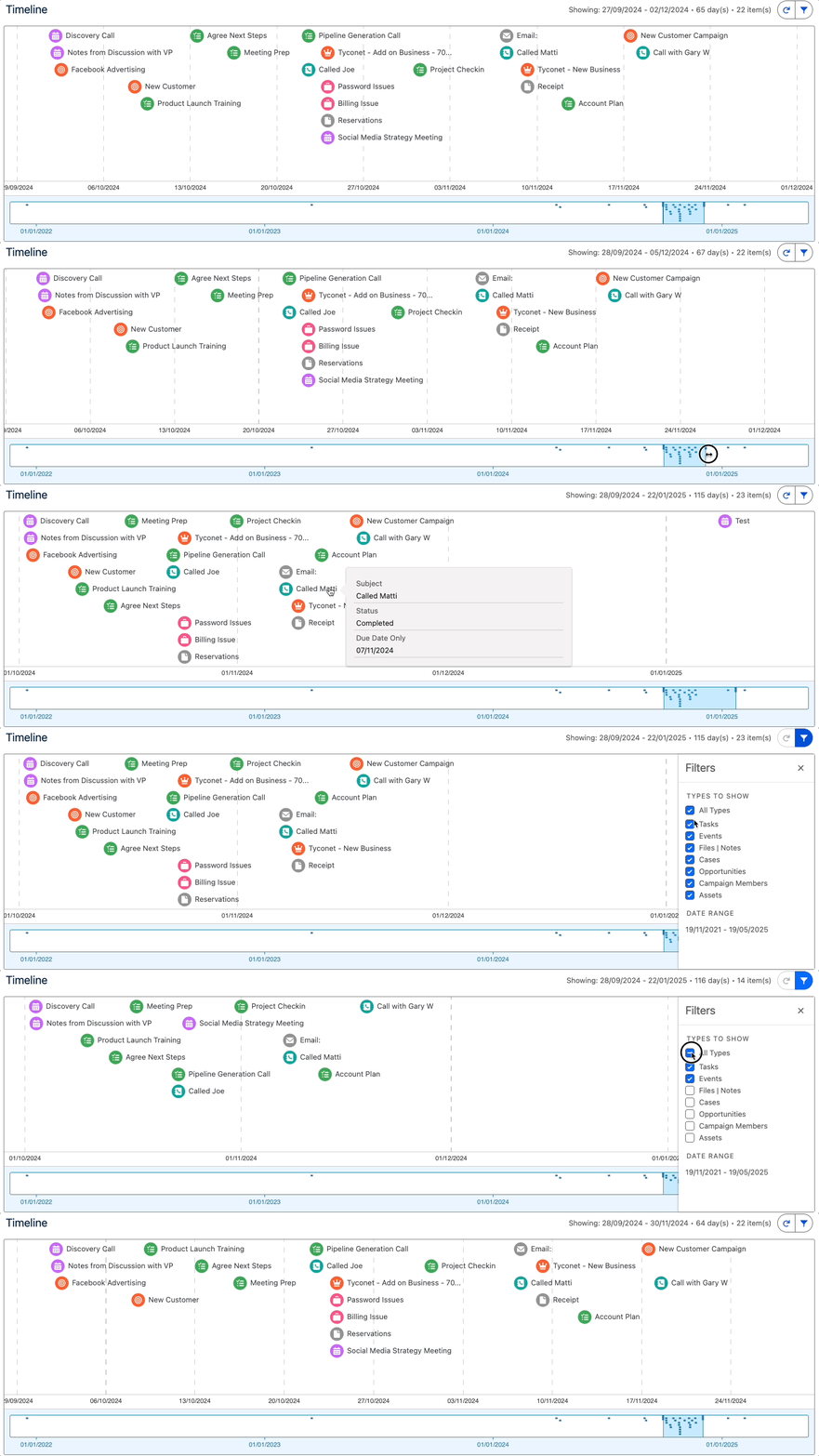
Timeline LWC in action: Visualizing all related records on an Account in a chronological timeline - the ultimate Customer 360 view
What is Timeline LWC?
Timeline LWC is an interactive timeline component developed by Dave Norris (deejay-hub) that enables Salesforce users to visualize related records of a parent object on an interactive timeline. Whether you’re looking at an Account, Contact, Opportunity, or any custom object, Timeline LWC provides a comprehensive, chronological view of all related activities and records.
Key Features:
- Multi-Object Support: Plot related records from any parent object
- Junction Object Support: Handle many-to-many relationships using simple dot notation
- Multi-Language Support: All labels and error messages are translatable custom labels
- Locale Support for Dates: Date formats automatically adjust based on Salesforce locale settings
- Third-Party JavaScript Integration: Demonstrates best practices for using third-party JavaScript libraries
- Responsive Interface: Adapts to different page layouts using
flexipageRegionWidth - Efficient Data Handling: Minimizes server roundtrips using Lightning Data Service for tooltips
Why Timeline LWC is the Ultimate Customer 360 Tool
Traditional Salesforce views require users to navigate between multiple related lists, reports, and dashboards to get a complete picture of customer interactions. Timeline LWC consolidates all this information into a single, intuitive timeline view.
The Problem It Solves
Before Timeline LWC, to see all related items on an account, you would need to:
- Navigate to the Account record
- Scroll through multiple related lists (Opportunities, Cases, Activities, etc.)
- Open individual records to see details
- Switch between different views and reports
- Manually piece together the chronological story
The Timeline LWC Solution
With Timeline LWC, you get:
- One unified view of all related records
- Chronological ordering showing the complete customer journey
- Interactive tooltips with record details without leaving the page
- Visual grouping by object type with color coding
- Responsive design that works on all devices
Installation Options
Timeline LWC offers two installation methods:
Option 1: Managed Package (Recommended for Non-Developers)
The easiest way to get started is through the free managed package available on the Salesforce AppExchange:
- Navigate to the Salesforce AppExchange
- Search for “Timeline LWC”
- Click “Get It Now”
- Install the package into your org
- Assign the
Timeline_Userpermission set to users who need access
Option 2: Source Code Installation (For Developers)
For developers who want to customize or contribute to the component, you can install it directly from source:
Prerequisites
Before you begin, ensure you have:
- Dev Hub enabled in your Salesforce org
- Salesforce CLI installed
- Visual Studio Code installed
- Salesforce Extensions for VS Code installed (including Lightning Web Components extension)
Step-by-Step Installation
1. Authenticate with Your Hub Org
sf org login web -d -a myhuborg
2. Clone the Repository
gh repo clone https://github.com/deejay-hub/timeline-lwc
cd timeline-lwc
Or using git:
git clone https://github.com/deejay-hub/timeline-lwc.git
cd timeline-lwc
3. Update Configuration File
Create or update sfdx-project.json with the following content:
{
    "packageDirectories": [
        {
            "path": "force-app",
            "default": true
        }
    ],
    "sfdcLoginUrl": "https://login.salesforce.com",
    "sourceApiVersion": "63.0"
}
4. Create a Scratch Org
sf org create scratch -d -f config/project-scratch-def.json -a timeline-lwc -y 30
5. Deploy the App
sf project deploy start
6. Assign Permission Set
Assign the Timeline_User permission set to the default user:
sf org assign permset --name "Timeline_User"
7. Load Sample Data (Optional)
To see the component in action with sample data:
sf data import tree --plan data/timeline-plan.json
8. Open Your Scratch Org
sf org open
9. Install Node Modules (Optional)
For development features like linting and testing:
npm install
Adding Timeline LWC to a Page
Once installed, adding Timeline LWC to a Lightning page is straightforward:
- Navigate to the record where you want to see the timeline (e.g., an Account or Contact)
- Click the Setup gear icon → Edit Page
- In the Lightning App Builder, find Timeline LWC in the custom components section
- Drag the component onto your page layout
- Configure the component properties (see Configuration section below)
- Click Save and Activate
Configuration
Timeline LWC is highly configurable. Here are the key configuration options:
Basic Configuration
- Parent Object API Name: The object whose related records you want to display (e.g.,
Account,Contact) - Record Id: The ID of the specific record (automatically populated when on a record page)
- Date Field: The field to use for chronological ordering (typically
CreatedDateorLastModifiedDate)
Advanced Configuration
- Related Objects: Configure which related objects to include in the timeline
- Field Mappings: Map fields from related objects to display in tooltips
- Color Coding: Assign colors to different object types for visual distinction
- Date Range Filtering: Optionally filter records by date range
Example Configuration for Account Timeline
To show all related items on an Account:
{
    "parentObject": "Account",
    "dateField": "CreatedDate",
    "relatedObjects": [
        {
            "objectApiName": "Opportunity",
            "relationshipName": "Opportunities",
            "titleField": "Name",
            "subtitleField": "StageName",
            "color": "#0070d2"
        },
        {
            "objectApiName": "Case",
            "relationshipName": "Cases",
            "titleField": "Subject",
            "subtitleField": "Status",
            "color": "#c23934"
        },
        {
            "objectApiName": "Task",
            "relationshipName": "Tasks",
            "titleField": "Subject",
            "subtitleField": "Status",
            "color": "#ffb75d"
        }
    ]
}
Technical Architecture
Timeline LWC is built using modern Salesforce development practices:
Component Structure
- Lightning Web Component (LWC): Built with the latest LWC framework
- Apex Controllers: Handles server-side data retrieval
- Lightning Data Service: Used for efficient tooltip data loading
- Third-Party JavaScript: Integrates with timeline visualization libraries
Key Technical Features
1. Efficient Data Loading
The component uses Lightning Data Service to minimize server roundtrips:
import { getRecord } from 'lightning/uiRecordApi';

@wire(getRecord, { recordId: '$recordId', fields: FIELDS })
wiredRecord({ error, data }) {
    if (data) {
        // Process record data
    }
}
2. Responsive Design
Uses flexipageRegionWidth to adapt to different page layouts:
@api flexipageRegionWidth;
3. Multi-Language Support
All user-facing text uses custom labels:
import TIMELINE_LABEL from '@salesforce/label/c.Timeline_Label';
Use Cases
Timeline LWC excels in several scenarios:
1. Account Management
View all interactions with an account in chronological order:
- Opportunities at various stages
- Support cases and resolutions
- Activities and meetings
- Custom object records
2. Contact History
Track all touchpoints with a contact:
- Email interactions
- Call logs
- Meeting notes
- Opportunity involvement
3. Opportunity Tracking
See the complete journey of an opportunity:
- Related activities
- Email correspondence
- Document attachments
- Custom process steps
4. Case Management
Visualize case progression:
- Case creation and updates
- Related activities
- Solution articles referenced
- Time tracking
Best Practices
When implementing Timeline LWC, consider these best practices:
- Limit Related Objects: Don’t include too many related objects—focus on the most important ones for your use case
- Optimize Field Queries: Only query fields you actually need to display
- Use Appropriate Date Fields: Choose date fields that make sense chronologically (CreatedDate, LastModifiedDate, CloseDate, etc.)
- Configure Colors Thoughtfully: Use consistent color coding across your org
- Test Performance: With large datasets, test performance and consider date range filtering
Contributing to Timeline LWC
Since Timeline LWC is open source, you can contribute to its development:
- Fork the Repository: https://github.com/deejay-hub/timeline-lwc
- Create a Feature Branch:
git checkout -b feature/amazing-feature - Make Your Changes: Follow the coding standards in the repository
- Submit a Pull Request: Share your improvements with the community
Conclusion: The Ultimate Customer 360 Solution
Timeline LWC solves a real problem that many Salesforce users face: how to see a history of all the related items on an account in Salesforce. It’s an elegant, open-source solution that simply works.
Key takeaways:
- ✅ Free and Open Source: Available on GitHub and AppExchange
- ✅ Easy to Install: Managed package or source code installation
- ✅ Highly Configurable: Adapts to your specific use case
- ✅ Performance Optimized: Uses Lightning Data Service efficiently
- ✅ Community Supported: Active development and contributions welcome
Whether you’re a Salesforce administrator looking for a better way to visualize customer data or a developer wanting to contribute to an open-source project, Timeline LWC is worth exploring. It’s the ultimate Customer 360 tool that brings all your related records together in one beautiful, interactive timeline.
Resources
- GitHub Repository: https://github.com/deejay-hub/timeline-lwc
- AppExchange Listing: Search for “Timeline LWC” on the Salesforce AppExchange
- Documentation: Available in the GitHub repository README
Ready to get started? Install Timeline LWC today and transform how you view customer relationships in Salesforce. It’s free, open-source, and it simply works.